|
|
| (7 intermediate revisions by 2 users not shown) |
| Line 1: |
Line 1: |
| === <span style="font-size:medium;">Overview</span> ===
| | The ''Quick Scenario Analysis with Tree'' page can be accessed from the Main Menu: choose '''Scenario Analysis,''' then click '''''Quick Scenario Analysis with Tree'''.'' Use this feature to call up or to mix and match an extensive number of scenario interventions and/or a set of stored scenario intervention files, or to change any parameter or initial condition used in the software for any country/region, thus affecting the relationships used to forecast trends. Use the ''Quick Scenario Analysis with Tree'' to create Scenario-Load-Files (.sce), run these files through IFs to create Run-Result-Files (.run) that you can use throughout IFs. |
| | [[File:Example of the Quick Scenario Guide.png|center|thumb|950x950px|An example of the Quick Scenario Guide page in IFs when first opened.]] |
| | This page has a number of features and options to create, load, adjust, and run scenarios. These options and features include: |
|
| |
|
| ==== <span style="font-size:small;">What is a Scenario?</span> ====
| | * [[Repeated Features#General%20Display%20Options|'''Continue''']]: Go back to the previous menu or to the Main Menu of IFs. |
| | * '''Scenario Files''': |
| | ** '''Clear Tree''': Clear any interventions currently loaded to the scenario tree. |
| | ** '''Open''': Load any set of saved or preloaded Scenario-Load-Files (.sce). Hover over folder names to get to the desired scenario to load, then click on that scenario. The '''Open''' drop-down is based upon the "Scenarios" folder in the IFs file on the current device. Follow the same file path from the "Scenarios" folder to get to the desired scenario. The parameter tree will change according to the conditions of the chosen scenario file. |
| | ** '''Name and Save''': Open a pop-up to save a newly created scenario. The pop-up includes two fields to enter text into; type in the fields, then click '''Save''' or '''Cancel'''. The two fields are: |
| | *** '''File Name''': Enter a name for the created scenario. |
| | *** '''Folder Name''': Enter a new or already used folder name within the "User Defined Scenarios" folder under the "Scenarios" folder of the IFs file on the current device, to save the newly created scenario to that location. |
| | ** '''Export to IFs Standard CSV Format''': Save a CSV version of the scenario to the same folder that the currently displayed scenario is stored in. For newly created scenarios, click '''Name and Save''' first before clicking this option. CSV versions of scenarios can be easier to manage and understand, as all years and dimensions are aligned in titled columns, unlike Scenario-Load-Files (.sce) that are written in comma-separated text format. |
| | ** '''Export Working File''': Download a Scenario-Load-File (.sce) of the current scenario tree. |
| | ** '''Import IFs Standard CSV Format files''': If a scenario is saved using the IFs standard CSV format (use '''Export to IFs Standard CSV Format''' for an example of the format) in a folder under the "Scenario" folder in IFs file on the current device, it will appear as an option to import. Follow the same file path from the "Scenario" folder and click on the desired scenario CSV to import. |
| | * '''Add Scenario Component''': Similar to '''Open''' from the '''Scenario Files''' options. Layer multiple scenario files or interventions by clicking a different scenario once one has loaded. |
| | * '''Run Scenario''': Open the '''[[Running the Model|Run]]''' page for the current scenario in the scenario tree. Adjust the horizon and click '''Start Run'''. |
| | * '''Delete Selection''': When an intervention is displayed on the screen next to the scenario tree from either clicking on a parameter directly in the tree or from the '''Parameter Search''' option, click '''Delete''' to remove that intervention from the current scenario. |
| | * '''Set Group or Country''': Click '''Groups''' to make interventions for particular groups, or '''Countries''' for a particular country or countries. The current selection will have a checkmark next to it. |
| | * '''Annotate Scenario''': Click Annotate to open a description of the scenario interventions based on the current Scenario Tree. This is auto-generated, but to edit the annotation, click in the text box and change or add text as desired. Below the text box click '''Save''' to save edits, '''Clear''' to remove all text in the annotation, '''Help''' to open the corresponding page in the [[Main Page|Pardee Wiki]], or '''Exit''' to return to the ''Quick Scenario Analysis Tree.'' |
| | * '''Parameter Search''': Click '''Search''' to open the ''Parameter Search'' page to search and select specific parameters. The Parameter Search feature is described below. |
| | * '''Help''': Open the corresponding page in the [[Main Page|Pardee Wiki]]. |
|
| |
|
| This section of the Help Menu will guide you through the task of changing parameters and variables and creating Scenario-Load-Files/Run-Result-Files.
| | = <span style="font-size:xx-large;">Parameter Search</span> = |
|
| |
|
| After you have finished with [[Scenario_Description|this topic]], you should be able to answer/do the following:
| | Use the ''Parameter Search'' feature to search, explore, and choose parameters to adjust for scenario analysis. Use this feature with the ''[[Guide to Scenario Analysis in International Futures (IFs)|Guide to Scenario Analysis in IFs]]'' to find the parameters most useful for the intended intervention or scenario goal. Type the desired parameter name in the search bar, then click '''Search'''. Click on the parameter, which will bring up a few options described below. Click '''Load''' to select this parameter in the scenario tree, to adjust it for a scenario. Click '''Help''' to open the corresponding page in the [[Main Page|Pardee Wiki]], or '''Continue''' to go back to the previous menu or to the Main Menu of IFs. |
| | [[File:Example of Parameter Search Option.png|center|thumb|950x950px|An example of the Parameter Search option for the total fertility rate multiplier tfrm.]] |
| | The options, once a parameter is clicked, include: <span style="color:red">These options are not available for all parameters. |
| | * '''Define''': See a brief definition of what the parameter is. |
| | * '''Block Diagram (Pop-Up)''': Bring up a help-file that shows a diagram that broadly explains how drivers interact for the area of inquiry (agriculture, economics, etc.). There is normally also a textual explanation. |
| | * '''Equations (Pop-Up)''': See the mathematical equations that are used to determine this parameter. |
|
| |
|
| *What is the difference between a Scenario-Load-File and a Run-Result-File?
| | = <span style="font-size:xx-large;">Using the Scenario Tree</span> = |
| *What Previously-Run-Scenarios came installed in your version of IFs?
| | The easiest way to create scenario interventions is to use the ''[[Guide to Scenario Analysis in International Futures (IFs)|Guide to Scenario Analysis in IFs]]'' along with the Parameter Search option, but if desired, use the Scenario Tree. Click on any of the categories in the Scenario Tree (ex., Technological change. to open sub -categories and eventually to open up a parameter choices box. Once this box appears to the right of the scenario tree with parameter names and descriptions, click on any parameter to reveal a few options shown below. |
| *What is a scenario? What is not a scenario?
| | [[File:Example of Scenario Tree usage.png|center|thumb|950x950px|An example of the scenario tree being used for Technological Change, Energy, and with the QEM parameter selected; shows the options that selecting a parameter will reveal.]] |
| | The options include: <span style="color:red">These options are not available for all parameters. |
|
| |
|
| ==== <span style="font-size:small;">Introduction to the Scenario Tree</span> ====
| | * '''Select''': Choose the parameter in order to change it. |
| | * '''Drivers''': Click to see what variables are affecting the chosen parameter. |
| | * '''Explain (Pop-Up)''': See a causal diagram and an explanation of what affects this parameter. |
| | * '''View Equations (Pop-Up)''': See the mathematical equations that are used to determine this number. |
| | * '''Define''': See a brief definition of what the parameter is. |
| | Once a parameter is chosen by clicking '''Select''' a drop-down will appear to choose either a particular country or group. Choose the desired country or group by clicking on it. Another drop-down will appear if the parameter has dimensions (ex., Male, Female, Total), click on the desired dimension choice, and repeat if the parameter has multiple dimension choices. After this, the selected parameter will appear to the right of the tree with its base value or scenario value (if opened within an already made scenario) shown. An example of this screen is shown below. |
| | [[File:Example of Parameter Adjustment on Scenario Tree.png|center|thumb|950x950px|An example of a parameter selected to adjust on the Quick Scenario Analysis Tree page. Example of the Government expenditures by destination multiplier (Health) parameter for Argentina.]] |
| | Adjust the initial parameter value to make interventions using default changes by clicking the bubble for '''High''' or '''Low''', or to return to the base, click '''Base'''. Instead of using the default options, use the slider or enter the desired number into the field above the slider and click '''Apply'''. Using this slider or field option will apply that value to the whole time horizon to the year 2150, with an initial shift period based upon the choice from the '''Shift Years''' dropdown. In the example, the value is 5.177, and the shift years are 10, so the parameter interpolates from 1 to 5.177 from 2020 to 2030 and then stays at that value for the whole horizon. To have even more control of the parameter, click '''Fully Customize'''. |
| | [[File:Example of the Fully Customize Parameter option.png|center|thumb|950x950px|An example of the Fully Customize option for parameter changes. Example of the Government expenditures by destination multiplier (Health) parameter for Argentina.]] |
| | The '''Fully Customize''' option allows more control over parameter behavior. The '''Information''' table displays information on parameter value for a given year, and the minimum and maximum values that IFs allows users to intervene on. If above or below these, a warning message will appear. Use the '''Year''' field in this table to jump to a particular year to view the value or to start an intervention from. |
|
| |
|
| The scenario tree allows you to call up or to mix and match an extensive number of your own interventions and/or a set of stored scenario intervention files. This feature of IFs allows you to change any parameter or initial condition used in the software for any country/region or group that you choose, thus effecting the relationships used to forecast trends. Use the Quick Scenario Analysis with Tree to create Scenario-Load-Files, run these files through IFs in order to create Run-Result-Files that you can use throughout IFs. | | The '''Change Numerically''' table is where the changes to a parameter are made. Use the '''Next Year''' or '''Previous Year''' buttons to change the '''Year''' field by one. Once at the desired year to start an intervention shown in the '''Year''' field, enter in the '''Desired Value''' field the value to change the parameter to, use the '''Years to Repeat or Interpolate''' field to set the number of years for the intervention to take place (this includes the current year so to increase the value for the next 10 years, enter 11). Click '''Change/Repeat''' to apply the desired value for the number of years entered (for example, an increase to 8 for 61 years from 2090 to 2150, shown above) or click '''Interpolate''' to smoothly shift the value over the number of years entered from the current value to the desired value. Continue to use the '''Change Numerically''' table until the parameter is adjusted as desired. |
|
| |
|
| Below is the menu:
| | To ensure that the parameter is adjusted as desired, hover over the graph on the right side of the page to see the parameter value in any given year. Click '''Register Change''' to apply this intervention to the current scenario, '''Cancel All Changes''' to clear the current parameter adjustments, '''Exit to Scenario Tree''' to return to the scenario tree, or '''Help''' to open the corresponding page in the [[Main Page|Pardee Wiki]]. |
| | |
| [[File:Scenariotree.gif|center|Scenario Tree Menu]]
| |
| | |
| ==== <span style="font-size:small;">Loading Previously-run Scenarios and Previously-Structured Scenarios</span> ====
| |
| | |
| From the Scenario Files menu, you can clear your scenario tree, load Scenario-Load-Files or save your current Scenario-Load-File (.sce).
| |
| | |
| After you have finished with [[Quick_Scenario_Analysis_with_Tree#Previously-Run_Scenarios_and_Previously-Structured_Scenarios|this topic]], you should be able to do/answer the following:
| |
| | |
| *How do you clear parameter changes from the scenario tree?
| |
| *How do you find scenario files that are not used as Run-Result-Files?
| |
| *What do you have to click on to understand exactly what is being changed by different previously-run scenarios and previously-structured scenarios?
| |
| | |
| ==== <span style="font-size:small;">Adding Scenario Components and Other Previously Structured Scenarios</span> ====
| |
| | |
| Another feature of the Quick Scenario Analysis with Tree is the ability to add other scenario components. These previously-structured or previously-run scenarios are helpful ways to look at possible emerging global trends.
| |
| | |
| After you have finished with [[Quick_Scenario_Analysis_with_Tree#Adding_Scenario_Components_and_Other_Previously-Structured_Scenarios|this topic]], you should be able to do/answer the following:
| |
| | |
| *What does the Annotate Scenario option tell you?
| |
| *Search through the scenarios until you find one that takes deals with environmental change.
| |
| *Load a Scenario Component and return to the Scenario Tree.
| |
| | |
| ==== <span style="font-size:small;">Finding the Intervention You Want</span> ====
| |
| | |
| In order to tailor your Run-Result-File to your needs, you must be able to quickly find the parameter you are looking for.
| |
| | |
| After you have finished with [[Quick_Scenario_Analysis_with_Tree#Finding_Parameters_and_Variables|this topic]], you should be able to do/answer the following:
| |
| | |
| *What is the organizational logic of the tree?
| |
| *Where would you look if you wanted to find a parameter by typing into a search menu?
| |
| *What is the difference between the Selected Initial Conditions/Relationship Parameters and the other five main categories used in the Scenario Tree?
| |
| | |
| ==== <span style="font-size:small;">Exploring and Changing Parameters</span> ====
| |
| | |
| Once you have found the parameter you are looking for, say, the Total Fertility Rate Multiplier (Households/Individuals, Demographic/Population, TFRM), a number of new options become available.
| |
| | |
| After you have finished with [[Quick_Scenario_Analysis_with_Tree#Exploring_and_Changing_Parameters|this topic]], you should be able to do/answer the following:
| |
| | |
| *How do you select a parameter to change?
| |
| *What does multiplier mean?
| |
| *What do the select, drivers, explain, view equations and define options all allow you to do?
| |
| *How do you create a Run-Result-File?
| |
| *How do you save the results?
| |
| *How can you display the results of you change in IFs?
| |
| | |
| = <span style="font-size:xx-large;">Previously-Run Scenarios and Previously-Structured Scenarios</span> =
| |
| | |
| The following description of Previously-Run Scenarios and Previously-Structured will be based on the Quick Scenario Analysis with Tree option found under the Scenario Analysis option on the Main Menu of IFs.
| |
| | |
| To load Previously-Run Scenarios and Previously-Structured Scenarios, you must start by clicking on the Scenario Files menu option in the Main Menu of Quick Scenario Analysis with Tree.
| |
| | |
| If you would like to clear any changes to the parameter tree, click on New and decide whether or not you would like to save your current scenario. In order to load a previously-run scenario, click on the Open option and then scroll over to the scenario that you would like to load. Below is an image of some possible previously-run scenarios that can be loaded:
| |
| | |
| [[File:Previously1.gif|center|Loading previously-run scenarios]]
| |
| | |
| If you choose one of these previously-run scenarios, your parameter tree will change corresponding to the conditions of that file. To know what parameters were changed by the previously-run scenario, load the scenario and then click on Annotate Scenario at the top of the menu. This will access a brief description of the previously-run scenario along with a detailed list of all parameters that were changed.
| |
| | |
| From the Scenario Files menu, you can also add other previously-run scenarios that are not loaded into IFs, but that are saved in other files. Click on Add from the Scenario Files menu and you will be presented with a menu with a number of different previously-run scenarios that can be loaded into your parameter tree.
| |
| | |
| [[File:Previously2.gif|center|Scenario files menu]]
| |
| | |
| Click on one of the Scenario-Load-Files and you will be asked whether you want to load the .sce file. Click Yes and the parameter changes will be loaded into your parameter tree. Click on Annotate Scenario to see what parameters were changed.
| |
| | |
| From the Scenario Files menu, you can also save any of your scenario files. Simply click on Name and Save from the Scenario Files menu and you will be asked to choose where you would like to save your scenario and under what name. Note that these files are saved as .sce. Turning a file into a .run file requires you to [[Running the Model#Overview| run the model]].
| |
| | |
| = <span style="font-size:xx-large;">Adding Scenario Components and Other Previously-Structured Scenarios</span> =
| |
| | |
| From the Main Menu of Quick Scenario Analysis with Tree, click on Add Scenario Components and you will be presented with another menu. When you click on the + arrows on the left, sub-categories open. The image below shows what happens when you click on the + next to the World Integrated Scenario Sets and then the + next to the UNEP Geo sub-category. Any of the below previously-structured scenarios can be loaded into IFs. Simply click on the scenario and then, at the top of the screen, on Load. If you would like to know more about each previously-structured scenario, load the scenario and then click on Annotate Scenario.
| |
| | |
| = <span style="font-size:xx-large;">Finding Parameters and Variables</span> =
| |
| | |
| The Main Menu of Quick Scenario Analysis with Tree provides you with a tree on the left hand side of the screen. This tree represents all of the parameters and variables used in IFs. One way to find the parameter or variable you would like to change is to understand the general groupings of these categories. The first two options on the tree, Technological Change and Environmental Uncertainties, allow you to shape the intensity of technological growth and the intensity of various environmental trends. The third, fourth and fifth option on the tree, Households/Individuals, Governments/Social-Political Systems and Firms/Businesses, allow you to shape the parameters for the three main global actors. The final two options on the tree, Selected Initial Conditions and Relationship Parameters, allow you to change parameters at the onset of your run-file or the relationships between various parameters.
| |
| | |
| Another way for you to find the parameters you would like to change is by selecting the "Parameter Search" option on the top right of the toolbar. Clicking on this with bring up a window with a search box. For example, if you are looking to work with the malnourished children parameters, type in "malnourished" and hit enter. This will bring up any parameter with the word "malnourished" in its name. You can also search for the parameter or variable by its abbreviation.
| |
| | |
| Selecting this option will bring up a new window. From this window you can accomplish the following:
| |
| | |
| '''Type Variable Name:''' In the top box, type in a variable name and click '''Search'''. This will bring up any variable/parameter that has your search term in its name/definition.
| |
| | |
| '''Load:''' After you have located a variable/parameter you would like to see displayed, click Load.
| |
| | |
| '''Continue:''' Click here if you would like to return to the previous menu.
| |
| | |
| [[Define,_Drivers,_Explain,_Code_and_Delete|'''Define; Block Diagram; Equations; Linkages''']]
| |
| | |
| = <span style="font-size:xx-large;">Exploring and Changing Parameters</span> =
| |
| | |
| One of the key features of Quick Scenario Analysis with Tree is the ability to change specific variables and parameters.
| |
| | |
| The image below shows you what menu becomes available to you if you click on one specific parameter from the tree located on the left of the Main Menu of Quick Scenario Analysis with Tree. You are presented with five options: 1.) select the parameter in order to change it; 2.) click on drivers in order to see what variables are affecting what; 3.) click on explain to see a causal diagram and an explanation of what affects this parameter;4.) click on view equations to see the mathematical equations that are used to determine this number or; 5.) click on define to see a brief definition of what the parameter is.
| |
| | |
| [[File:Exploring1.gif|center|Changing specific variables and parameters menu]]
| |
| | |
| Spend as much time as you would like exploring the drivers, equations, definitions and explanations of various parameters. For this exercise, select TFRM. You will be asked to select a country or group. You can toggle between countries and groups at the top of your program window. For this exercise, choose France.
| |
| | |
| Because you selected a multiplier, the base-case value is always "1"—the model uses multipliers to easily raise or lower base-case values of many variables, and the multipliers are always "1" in the base case, so that values are unchanged by them. A multiplier can be distinguished from a variable because the ending of most multiplier abbreviations is the letter "m". You could use the Fully Customize option to create any pattern of intervention over time you desire, and at some point you should explore its use. But for now select the High option above the graph and note the change in the figure. This option will phase in a higher fertility for France.
| |
| | |
| You may also want to more specifically [[Quick_Scenario_Analysis_with_Tree#Customization_of_Parameters|customize]] the TFRM. This can be accomplished by changing the speed in which your increase or decrease in TFRM takes place (through the slide-down menu on the top right, "Shift Years:"). If you would like more control over your parameters, you can click on the Fully Customize button located below the graph. This will present you with a menu. This will allow you to very specifically change your parameters. Click on the Next Year or Previous Year options to see the numeric representation of how your parameter is being altered from the base-case. You can then choose what year you would like to specifically change, toggle to that year, change the value of that year by clicking on the box next to Desired Value. After you have entered your value, click on the Change/Repeat button to enter it into IFs. This change can then be interpolated for your remaining years by clicking on the Interpolate button. To apply your changes to IFs, click on Exit to Scenario Tree.
| |
| | |
| Multipliers, however, are not the only [[Quick_Scenario_Analysis_with_Tree#Parameter_Types|form of parameter]] in IFs. If you select a parameter located under the Selected Initial Conditions category, as the name suggests, you will be able to change initial conditions for certain parameters. For example, the HIV infection rate, initial percentage sub-sub-category (Selected Initial Conditions, Demographic – Mortality) will let you numerically alter the initial percentage of the population infected with HIV for your country or group.
| |
| | |
| If you choose other parameters, for example, the Carbon Tax (Governments/Socio-Political Systems, Environment), you will be presented with a parameter that numerically begins at zero. This is because there currently is no carbon tax in place. You may change the parameter to take into consideration a future world where carbon taxes are a reality.
| |
| | |
| Finally, if you choose a parameter in the Relationship Parameters category, you will be able to change the relationship between two different parameters. You may want to change the mathematical relationships in the "black-box".
| |
| | |
| If you have mistakenly changed a parameter and you would like to remove your alteration, simply click on the parameter change you would like to remove and then click on the Delete Selection option at the top of the menu. You will be asked whether you would really like to delete your parameter change. Click Yes.
| |
| | |
| Now you have changed a parameter, but it will affect nothing else until you run the model and recalculate all of the variables in it for all of the countries. You have created a Scenario-Load-File (.sce) and, in order to use it more broadly, you need a Run-Result-File (.run). Click on the ''Run Scenario'' option from the menu. Your parameter will first be loaded into the working file. You will then be shown the Running Scenario form. You can change the end year or leave it as is. Click on ''Start Run'' for IFs to create a new run-file based on your specifications.
| |
| | |
| After IFs has recomputed the model with your new parameters and saved it as a .run file, you will be presented with a screen that says, "Run Successful – Click to Continue." The run-file labeled "Working File" is now essentially your personalized scenario. Use the techniques you learned in the last section to compare the working file with the base case. But your intervention will have changed much else. Look, for instance, at Gross Domestic Product (GDP) of your country before and after the intervention and at GDP per capita (GDPPC). If your country or grouping was fairly large, you will see changes in many variables elsewhere around the world.
| |
| | |
| Now return to the Scenario Tree form and select the ''Scenario Files'' option, Name and Save sub-option. Give your scenario a name and the parameter intervention (but not the full results after your run) can be saved for you when you return to IFs later. If you are using the stand-alone (non-Web) version of IFs, the ''Scenario Analysis/File Management/Save'' option sequence also allows you to save all the computed results of the model run.
| |
| | |
| = <span style="font-size:xx-large;">Parameter Types</span> =
| |
| | |
| Parameters are numbers that determine relationships among variables in the equations of IFs. You often set parameters to a single value across time and they therefore do not always "vary" as do "real" variables. Many parameters are "policy handles." More generally, parameters can actually be thought of as a special type of variable, the value of which you set in order to determine the behavior of the model.
| |
| | |
| '''Multipliers.''' They have a normal value of 1, and to increase whatever they multiply (say agricultural yield) by 50 percent you increase the parameter to 1.5. To decrease it by 25 percent you would decrease the multiplier parameter to 0.75. You will almost always spread such changes out over time, keeping the multiplier's value at 1 in the base year and gradually increasing or decreasing it over a period of years. You should almost never change a multiplier in the initial year because the model is set up to provide accurate results for that year and will compensate for and thereby offset your change. For instance, if you set a multiplier on food production equal to 1.5 for the first year and all years thereafter, you might find that the results were no different than in the base case. You must instead gradually introduce your change, preserving the multiplier value of "1" in the initial year. Examples of multipliers include: AGDEMM, ENPM, FREEDOMM, MORTM, PROTECM, QEM, RDM, RESORM, TFRM, and YLM. Note that multipliers typically end with the letter "M".
| |
| | |
| '''Additive Factors.''' Most have a normal value of 0, thereby leaving that to which you add them (it could be exports) unchanged. How much you would add to achieve a 50 percent increase might depend on the amount to which you added it. Most additive parameters are, however, applied multiplicatively to the quantity they modify (that is, 1 plus the parameter is multiplied times the quantity), thereby scaling the parameter. In that case, the base or normal value of the parameter will be zero, but one can achieve a 50 percent increase in the quantity modified with a value of 0.5 and a 50 percent decrease with -0.5. You will very seldom want to change the base year value of additive parameters because it will either incorrectly change model results in the base year or, more likely, will result in model compensation to protect initial model results. An example of an additive parameter is: XSHIFT. Although earlier versions of IFs used additive factors and multipliers with comparable frequency, most additive factors have been replaced by multipliers to standardize most parameter change. | |
| | |
| '''Exponents.''' For instance, many "elasticities" raise something to a power. For these parameters the "normal value" will vary greatly, but they will most often fall between -2 and 2, with many clustering around 0. In most cases it will make sense to change these parameters for all years including the first - generally the model will not use them in the first year and they will affect results only in subsequent years. Elasticities in IFs include: ELASAC, ELASS, ENGEL, and PRODME.
| |
| | |
| '''Reactivities.''' These are factors that relate growth in one process to growth in another. Although many will range between -2 and 2 (with 0 eliminating linkage of the processes), some have very large values. They are very much like elasticities, but the formulations that use them do not have exponential form. Reactivities include: CDMF, CPOWDF, CWARF, NWARF, and REAC.
| |
| | |
| '''Growth Rates.''' It is possible to force some processes to grow at specified rates. More commonly, the specified rates serve as targets and the dynamics of the model often shift actual growth rates somewhat, necessitating experimentation with targets to achieve a desired growth. Examples include: EPRODR and TGRLD.
| |
| | |
| '''Allocating coefficients.''' Coefficients are often used in multiplicative relationships with other variables, but many such coefficients are not what were earlier called multipliers (with a base value of 1). Instead they can serve an allocating role. For instance, eyou can use parameters to allocate governmental spending to health, education, and the military. Allocating coefficients frequently have values between 0 and 1. Again, you should generally not change these parameters in the initial year because the model will often compensate for changed values in the first year. Instead, change them by series over time. Allocating coefficients in IFs include: AIDLP, AIDV, CARABR, DRCPOW, DRNPOW, GK, LAPOPR, NMILF, REPAYR, and RFSSH.
| |
| | |
| '''Transforming coefficients.''' Some coefficients transform units of variables or link variables in other ways. Examples in IFs are: CARFUEL1, CARFUEL2, CARFUEL3, and FRQK.
| |
| | |
| '''Variables.''' This category should technically not be called parameters at all. They could and would be computed endogenously, if the model included the appropriate theoretical structure. They generally do not determine the interaction of other variables. Such variables include: AQUACUL and OFSCTH.
| |
| | |
| '''Initial conditions.''' Again, these are not strictly parameters, but rather first-year values for variables subsequently computed by the model. Although many initial conditions, like the population (POP) of the U.S., are sufficiently well-known that they should not be changed by model users, others, like the ultimate availability of oil and gas resources are only reasonable guesses. Thus users should feel free to change some initial conditions based on new data or even simply to test the implications. This category includes a great many variables, such as: LD and RESOR.
| |
| | |
| '''Switches.''' These parameters turn something on or off. They generally take on values of 1 (on) or 0 (off), but can have additional settings. For instance, some switches not only turn on some process, but set a key value within it (like the level of energy exports). Switches are most often on or off for the entire run, but it sometimes makes sense to "throw a switch" in the middle of a run. Switches allow you to fundamentally alter the structure of a model. Switches include: ACTREAON, AGON, ALLY, ENON, ENTL, ENPRIX, and SQUEEZ.
| |
| | |
| The focus here is on exogenous parameters only - on those elements of the model that you can change. Many computed variables are used in the computation of other variables in the same way that parameters are, as multipliers, additive factors, coefficients, and so on. You can display those, but unlike true parameters, you cannot change them.
| |
| | |
| = <span style="font-size:xx-large;">Customization of Parameters</span> =
| |
| | |
| Access to time-variant parameter specification (the Change Values form) can be from either guided scenario analysis or self-managed scenario analysis.
| |
| | |
| Although most modeling discussions portray parameters as if they should be fixed over time, that is a very limiting conceptualization of them. In fact, it is normally better to specify parameters so that a particular phenomenon (e.g., a change in values concerning fertility, a policy-influenced movement towards higher savings rates, or a development of renewable energy technologies) phases in over time.
| |
| | |
| Alternative Ways to Use the Change Values Form:
| |
| | |
| '''Use the Slider Bar to Change a Parameter for All Years.''' You move the slider to the left or right to change the parameter value and then touch the Register Change button to actually change the parameter. | |
| | |
| '''Specify a Desired Value for One or More Years.''' You specify a desired numerical value, indicate the number of years you wish to repeat that value (one or more) and then touch the Change/Repeat button.
| |
| | |
| '''Interpolate to a Desired Value over Several Years.''' You specify a desired value, indicate the number of years over which you wish to interpolate to that value, and then touch the Interpolate button.
| |
| | |
| '''Move Forward or Backward Across Years.''' You touch the Previous Year or the Next Year buttons to move across time without changing parameter values.
| |
| | |
| '''Cancel all Changes.''' You touch the Cancel all Changes button to revert to the parameter values before you began making changes.
| |
| | |
| '''Example.''' Try increasing the value of agricultural yields (YL) in Mexico by raising the value of a parameter called "ylm" from 1.0 in the initial year to 1.3 in 2020. That would build in an assumption of a 30% increase in the productivity of African agriculture, relative to the base case. To do this, select Scenario Analysis from the Main Menu and the Self-Managed Scenario Analysis sub-option. On the Self-Managed Scenario Analysis form select the Change option and Full Set sub-option. Specify ylm and choose Mexico as the country/region. Success in doing that will take you automatically to the Change Values (time-variant parameter specification) form. Designate 1.3 as the desired value to which you will interpolate (that is, move gradually over time) and indicate the number of years for the interpolation (say 20). Select the interpolate action option to carry it out. Then identify 1.3 as the desired value you wish to repeat (that should already be done for you), 100 or some other large number as the years to repeat, and select the change/repeat button. Exit and select the Display option. Select ylm for display, and look at it in a table or graph to make sure you have changed this parameter as you desired. It is often a good idea to check the success of a parameter change before running the model.
| |
| | |
| = <span style="font-size:xx-large;">Understanding Model Computations</span> =
| |
| | |
| It is critical that there be as much transparency as possible with respect to computations that underlie the variables chosen for display. In a large, integrated model, achieving such transparency is not simple. You are invited to look at the very extensive Help section called [[Understand_IFs|"Understanding the Model: ‘Opening the Black Box’"]] for extensive documentation via flow charts, equations, and computer code.
| |
| | |
| While working with display of variables, however, there are several ways in which to drill down for explanations of what lies behind their computations. After you have added variable or parameter changes to the Quick Scenario with Tree you can learn more about how a parameter or variable is generated by clicking on it and exploring the options.
| |
The Quick Scenario Analysis with Tree page can be accessed from the Main Menu: choose Scenario Analysis, then click Quick Scenario Analysis with Tree. Use this feature to call up or to mix and match an extensive number of scenario interventions and/or a set of stored scenario intervention files, or to change any parameter or initial condition used in the software for any country/region, thus affecting the relationships used to forecast trends. Use the Quick Scenario Analysis with Tree to create Scenario-Load-Files (.sce), run these files through IFs to create Run-Result-Files (.run) that you can use throughout IFs.

An example of the Quick Scenario Guide page in IFs when first opened.
This page has a number of features and options to create, load, adjust, and run scenarios. These options and features include:
- Continue: Go back to the previous menu or to the Main Menu of IFs.
- Scenario Files:
- Clear Tree: Clear any interventions currently loaded to the scenario tree.
- Open: Load any set of saved or preloaded Scenario-Load-Files (.sce). Hover over folder names to get to the desired scenario to load, then click on that scenario. The Open drop-down is based upon the "Scenarios" folder in the IFs file on the current device. Follow the same file path from the "Scenarios" folder to get to the desired scenario. The parameter tree will change according to the conditions of the chosen scenario file.
- Name and Save: Open a pop-up to save a newly created scenario. The pop-up includes two fields to enter text into; type in the fields, then click Save or Cancel. The two fields are:
- File Name: Enter a name for the created scenario.
- Folder Name: Enter a new or already used folder name within the "User Defined Scenarios" folder under the "Scenarios" folder of the IFs file on the current device, to save the newly created scenario to that location.
- Export to IFs Standard CSV Format: Save a CSV version of the scenario to the same folder that the currently displayed scenario is stored in. For newly created scenarios, click Name and Save first before clicking this option. CSV versions of scenarios can be easier to manage and understand, as all years and dimensions are aligned in titled columns, unlike Scenario-Load-Files (.sce) that are written in comma-separated text format.
- Export Working File: Download a Scenario-Load-File (.sce) of the current scenario tree.
- Import IFs Standard CSV Format files: If a scenario is saved using the IFs standard CSV format (use Export to IFs Standard CSV Format for an example of the format) in a folder under the "Scenario" folder in IFs file on the current device, it will appear as an option to import. Follow the same file path from the "Scenario" folder and click on the desired scenario CSV to import.
- Add Scenario Component: Similar to Open from the Scenario Files options. Layer multiple scenario files or interventions by clicking a different scenario once one has loaded.
- Run Scenario: Open the Run page for the current scenario in the scenario tree. Adjust the horizon and click Start Run.
- Delete Selection: When an intervention is displayed on the screen next to the scenario tree from either clicking on a parameter directly in the tree or from the Parameter Search option, click Delete to remove that intervention from the current scenario.
- Set Group or Country: Click Groups to make interventions for particular groups, or Countries for a particular country or countries. The current selection will have a checkmark next to it.
- Annotate Scenario: Click Annotate to open a description of the scenario interventions based on the current Scenario Tree. This is auto-generated, but to edit the annotation, click in the text box and change or add text as desired. Below the text box click Save to save edits, Clear to remove all text in the annotation, Help to open the corresponding page in the Pardee Wiki, or Exit to return to the Quick Scenario Analysis Tree.
- Parameter Search: Click Search to open the Parameter Search page to search and select specific parameters. The Parameter Search feature is described below.
- Help: Open the corresponding page in the Pardee Wiki.
Parameter Search
Use the Parameter Search feature to search, explore, and choose parameters to adjust for scenario analysis. Use this feature with the Guide to Scenario Analysis in IFs to find the parameters most useful for the intended intervention or scenario goal. Type the desired parameter name in the search bar, then click Search. Click on the parameter, which will bring up a few options described below. Click Load to select this parameter in the scenario tree, to adjust it for a scenario. Click Help to open the corresponding page in the Pardee Wiki, or Continue to go back to the previous menu or to the Main Menu of IFs.
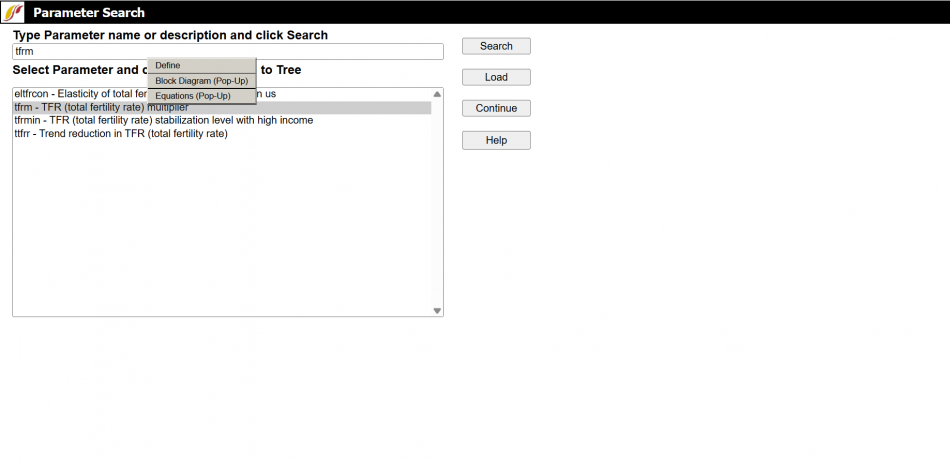
An example of the Parameter Search option for the total fertility rate multiplier tfrm.
The options, once a parameter is clicked, include: These options are not available for all parameters.
- Define: See a brief definition of what the parameter is.
- Block Diagram (Pop-Up): Bring up a help-file that shows a diagram that broadly explains how drivers interact for the area of inquiry (agriculture, economics, etc.). There is normally also a textual explanation.
- Equations (Pop-Up): See the mathematical equations that are used to determine this parameter.
Using the Scenario Tree
The easiest way to create scenario interventions is to use the Guide to Scenario Analysis in IFs along with the Parameter Search option, but if desired, use the Scenario Tree. Click on any of the categories in the Scenario Tree (ex., Technological change. to open sub -categories and eventually to open up a parameter choices box. Once this box appears to the right of the scenario tree with parameter names and descriptions, click on any parameter to reveal a few options shown below.
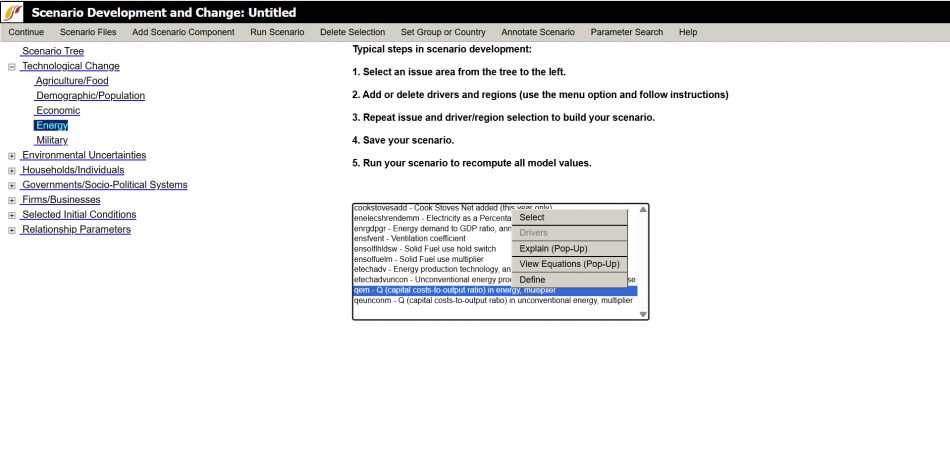
An example of the scenario tree being used for Technological Change, Energy, and with the QEM parameter selected; shows the options that selecting a parameter will reveal.
The options include: These options are not available for all parameters.
- Select: Choose the parameter in order to change it.
- Drivers: Click to see what variables are affecting the chosen parameter.
- Explain (Pop-Up): See a causal diagram and an explanation of what affects this parameter.
- View Equations (Pop-Up): See the mathematical equations that are used to determine this number.
- Define: See a brief definition of what the parameter is.
Once a parameter is chosen by clicking Select a drop-down will appear to choose either a particular country or group. Choose the desired country or group by clicking on it. Another drop-down will appear if the parameter has dimensions (ex., Male, Female, Total), click on the desired dimension choice, and repeat if the parameter has multiple dimension choices. After this, the selected parameter will appear to the right of the tree with its base value or scenario value (if opened within an already made scenario) shown. An example of this screen is shown below.

An example of a parameter selected to adjust on the Quick Scenario Analysis Tree page. Example of the Government expenditures by destination multiplier (Health) parameter for Argentina.
Adjust the initial parameter value to make interventions using default changes by clicking the bubble for High or Low, or to return to the base, click Base. Instead of using the default options, use the slider or enter the desired number into the field above the slider and click Apply. Using this slider or field option will apply that value to the whole time horizon to the year 2150, with an initial shift period based upon the choice from the Shift Years dropdown. In the example, the value is 5.177, and the shift years are 10, so the parameter interpolates from 1 to 5.177 from 2020 to 2030 and then stays at that value for the whole horizon. To have even more control of the parameter, click Fully Customize.

An example of the Fully Customize option for parameter changes. Example of the Government expenditures by destination multiplier (Health) parameter for Argentina.
The Fully Customize option allows more control over parameter behavior. The Information table displays information on parameter value for a given year, and the minimum and maximum values that IFs allows users to intervene on. If above or below these, a warning message will appear. Use the Year field in this table to jump to a particular year to view the value or to start an intervention from.
The Change Numerically table is where the changes to a parameter are made. Use the Next Year or Previous Year buttons to change the Year field by one. Once at the desired year to start an intervention shown in the Year field, enter in the Desired Value field the value to change the parameter to, use the Years to Repeat or Interpolate field to set the number of years for the intervention to take place (this includes the current year so to increase the value for the next 10 years, enter 11). Click Change/Repeat to apply the desired value for the number of years entered (for example, an increase to 8 for 61 years from 2090 to 2150, shown above) or click Interpolate to smoothly shift the value over the number of years entered from the current value to the desired value. Continue to use the Change Numerically table until the parameter is adjusted as desired.
To ensure that the parameter is adjusted as desired, hover over the graph on the right side of the page to see the parameter value in any given year. Click Register Change to apply this intervention to the current scenario, Cancel All Changes to clear the current parameter adjustments, Exit to Scenario Tree to return to the scenario tree, or Help to open the corresponding page in the Pardee Wiki.


